How to create great Drop Down Menu with jQyery

Studies show that top navigations tend to get the most visual attention when a user first visits a site. Having organized and intuitive navigation is key — and while most drop down menus may look aesthetically pleasing, developing them to degrade gracefully is also essential. In this tutorial I would like to go over how to create a sexy drop down menu that can also degrade gracefully.

Read More

Free textures for design

Every day we try our best to present to you some useful tips, dear reader, to inspire you with fresh ideas and to try out new things. Today, we’ve prepared a nice collection of freetexture packs that you just may have been looking for to freshen up your designs you’re working on. Enjoy!.

Read More

jQuery Menus with stunning animations

Query is a great tool that helps our imagination turn ideas into reality. We can do almosteverything we can think of with the help of this useful tool. Apart from being a lightweight cross-browser JavaScript library that simplifies HTML and Ajax interactions for rapid web development, it also gives sites that sleek look while also representing important data in a very attractive way.

Read More

Create black Navigation Menu

Follow this step by step guide to create a dark and sleek navigation menu design. We’ll begin by building the visual concept in Photoshop, export the image files, then build up the final menu in HTML and CSS using a range of declarations to replicate the design.

Read More

Featured Post 5 Title

Replace these every slide sentences with your featured post descriptions.Go to Blogger edit html and find these sentences.Now replace these with your own descriptions.This theme is Bloggerized by Lasantha - Premiumbloggertemplates.com.Download more free blogger templates from www.premiumbloggertemplates.com.

Read More

Search

Monday, February 28, 2011

Create an Ice Cream Type Treatment in Photoshop

It’s funny to see how simple objects can inspire creative type treatments. In the past I’ve played with plates, paper andwood. Today I will show you how to realize an awesome text effect using ice cream! The process is simple enough for any level Photoshop lover. We will be dealing with illustration techniques, and will explore the power of layer styles applied to custom brushes. So… give it a try!

Preview

Click to enlarge

ice cream type

Here is a 100% zoom close up

ice cream type

Step 1

Let’s start by creating a new Photoshop document. Mine is 2560×1440 pixels. Fill the background with a color of your choice (it’s not important at this stage), and double click on the layer thumb to open the layer styles window.

Here add a gradient (radial) overlay going from #c0e6df to #15a48b, thus overlapping the first fill color.

ice cream type

Step 2

At this point we need to choose the right font for the illustration. If you have more patience, you could try drawing custom letters in Illustrator. Just try to make them bold and a bit irregular. If you’re lazy, like me, do a search for the right font: Doughboy, realized by Lucas Sharp, looks perfect!.

Write a word or phrase. A suggestion: type each letter on a separate layer.

ice cream type

Step 3

I will show you how I created the first letter, S. The process for the other letters is the same, so once you’ve learned how to create your first ice-cream letter, you’ll be able to reproduce it infinite times.

Start by rasterizing the type: right-click on the letter thumbnail > rasterize type. Then right-click again and select “Blending options”. We will play with layer styles to start giving color and depth to the illustration.

Add a light red (#fd5e74) color overlay.

ice cream type

Select Bevel and Emboss with the following settings and check “contour” to make the 3d effect more evident.

ice cream type

Finally add Satin, set on color dodge, to put in some interesting details.

ice cream type

Step 4

To make the ice-cream/letter more realistic we can use a texture. Download this ice imageand merge it into the document (File > Open…), directly above the letter. Press ctrl+T to activate the free transform tool and resize the image.

ice cream type

Set the texture color mode to color burn with opacity 10%

ice cream type

Finally with the texture still selected, ctrl+click over the letter (layer thumbnail) to make a selection of its pixels, and add a layer mask. By doing this you will remove the texture areas that exceed the letter.

To add a layer mask simply click the “add layer mask” button which is at the bottom of the layer window.

ice cream type

Step 5

Select both the texture and letter layers and press alt+ctrl+E to merge them into a new layer. We will use this image from now on, feel free to hide the 2 original layers.

Now let’s add a noise effect. Make sure to have white and black as foreground and background color, then create a new layer and fill it with black. Go to Filter > Noise > Add Noise…

ice cream type

Add a layer mask, as shown in step 4, so the noise effect will affect only the area covered by the letter:

ice cream type

Set the layer to screen to remove the black area, and reduce the opacity to around 30% to make the effect subtle.

ice cream type

Step 6

Let’s create the stick. Draw the main shape with the rounded rectangle tool (radius 30px).

ice cream type

Add a light brown (#f4d0b0) color overlay, then rasterize the layer.

ice cream type

With the Rectangular Marquee tool, select the top area of the shape and hit delete. Then ctrl+D to deselect.

ice cream type

Duplicate the shape layer by pressing ctrl+J. Then move the shape which is below a couple of pixel to the bottom-right. Switch its color to a darker brown (#d68f61).

ice cream type

Step 7

With the same technique used in step 4 and 5, let’s apply a wooden texture to the stick. Download our wooden textures and pick up a photo of your choice. Then merge it into the document.

Set the layer blend mode to overlay to see how it will affect the stick.

ice cream type

Reduce the opacity to around 60%, and add a layer mask to remove the area that exceeds the stick.

(To select both the shapes of the sticks, ctrl+click on the first shape, then hold down shift and click on the second one).

ice cream type

Select the texture layer and the two shapes of the stick from the layers window, then merge them into a new layer (alt+ctrl+E) and hide the original layers.

With the pen tool in path mode, create a path that covers a small top area of the stick that we will remove later. The purpose of this step is to make the stick less “rigid”.

ice cream type

Press ctrl+enter to activate the selection and hit delete.

ice cream type

Step 8

Using the Burn and Dodge tools, make darker and brighter areas of the ice cream main body. From the screenshot below you can see how I darkened the area behind the stick:

ice cream type

Apply the burn tool again, this time over the top of the stick. Based on the direction of the light source, this area should look darker.

ice cream type

Step 9

A light effect can help to enhance some texture details and make the frozen effect over the ice-cream look more realistic. So create a new group and set its blending mode to color dodge. Create a layer inside the group, grab a large, soft (hardness 0%), white brush and click once over the ice-cream. Reduce the opacity, if the effect is too strong.

Here is my outcome.

ice cream type

Step 10

Here comes the fun part! We will create drops and ice pieces with the use of layer styles. My first thought was to use stock images of drops and water, and play with their blending options to add the drops to the scene. However, after several attempts I decided to proceed with brushes and layer styles, thanks to the help of our great illustrator Diego. The result is more than satisfactory!

Create a new layer and grab a small round brush with hardness 100%. Then paint a spot over the ice-cream.

ice cream type

Double-click on the drop layer to open the style window. Reduce the fill opacity to 0%.

ice cream type

Add bevel and emboss. This will give depth to the drop:

ice cream type

Add a drop shadow and inner shadow.

ice cream type

ice cream type

Finally add inner glow and satin as the last touches:

ice cream type

ice cream type

Step 11

Now that you have the layer set up, just paint! I’ve created this screencast so you can see my process to realize the drops (with the help of my Wacom tablet).

Step 12

Here is the first letter complete:

ice cream type

Now create a new layer and paint the shadow effect with a soft black brush. Reduce the opacity so the result will look softer. Finally, use the same brush to create the drops on the floor.

ice cream type

The last touch: to increase the contrasts, just add a new gradient map layer (Layer > New Adjustment Layer > Gradient map). Add a gradient going from red (#ee202e) to blue (#002874) to yellow (#f9e600). Set the layer to overlay with opacity 30%.

ice cream type

Now that you know how to create a letter, you can apply it to the entire word or phrase. Exercise your creativity and play with different forms and colors.

The ice-cream is now complete! Are you hungry???

ice cream type

How to create Gauge Icon in Photoshop

Follow this step by step guide to creating a detailed gauge icon in Photoshop. We’ll be using various Photoshop layer styles to build up gradients and shadows to produce a detailed and realistic large scale icon, then modify and rebuild the icon into a range of typical icon sizes.

Gauge icon design

The icon we’ll be creating features a sleek and colourful gauge set in a chrome beveled frame with subtle textures and gradients. The largest and most detailed version comes in at 256x256px, then it is incrementally scaled to 128px, 64px, 48px and 32px, each becoming less detailed but modified slightly to work at the smaller sizes.

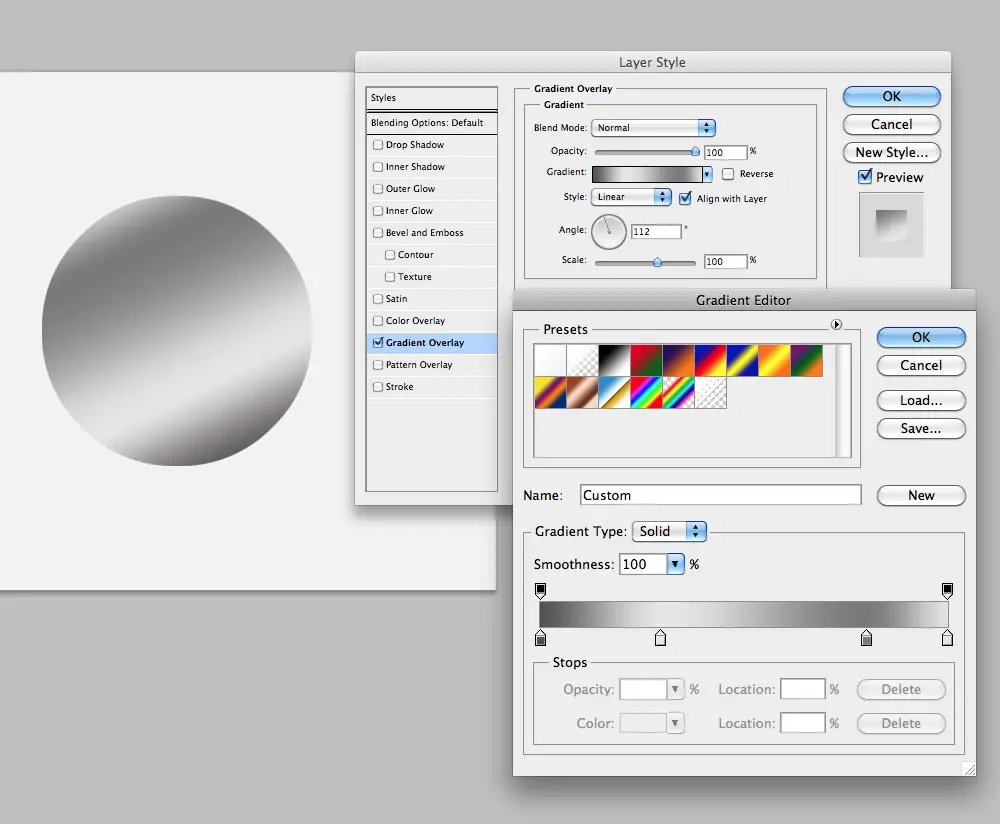
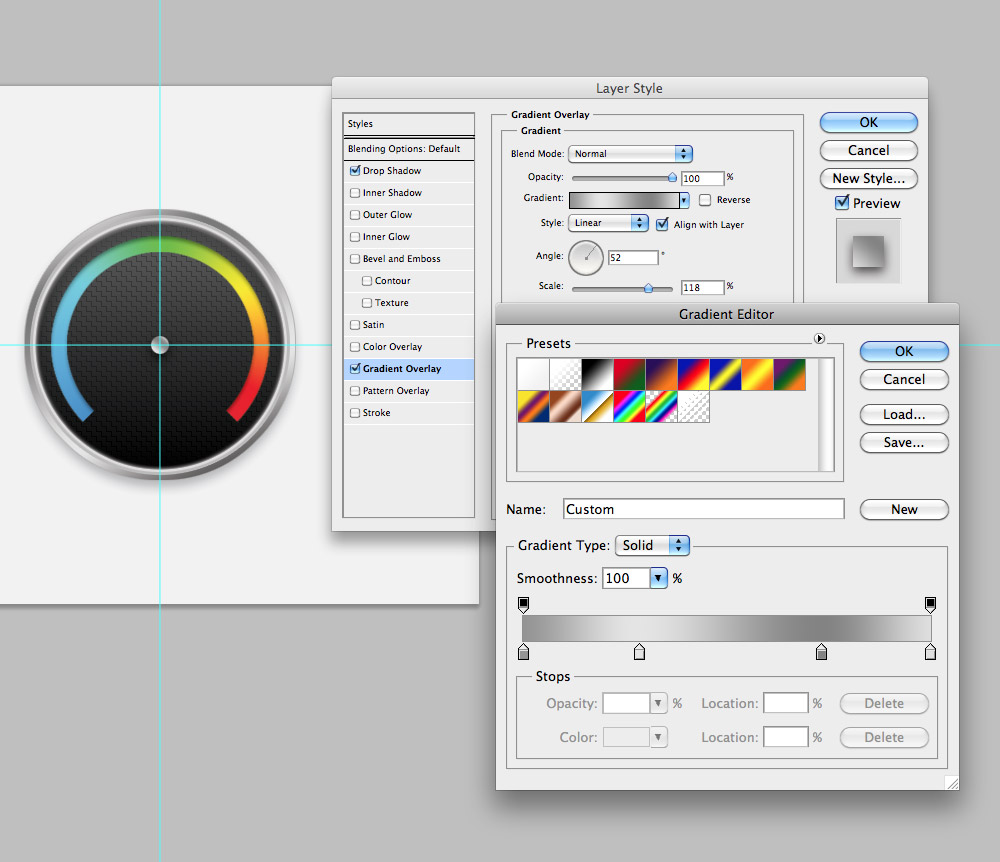
We’ll start with the largest of the icons. Draw a 256px circle with the Marquee tool on a new layer and fill it with any colour. Double click the layer to open up the layer styles options. Add a Gradient Overlay alternating between dark and light greys to give a shiny metal effect.

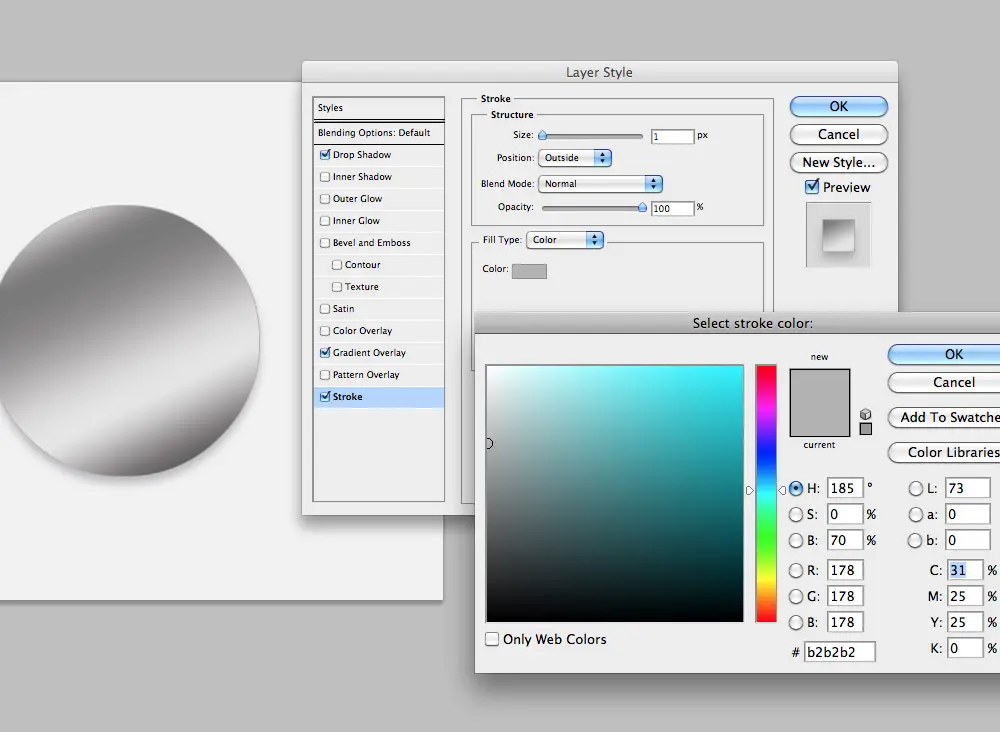
Add a thin 1px stroke using a mid-grey between the two tones used on the gradient. Using Photoshop layer styles throughout the creation of the icon makes it much easier to rebuild the icon at the smaller sizes as each effect can be reloaded and quickly edited via the layer styles options palette.

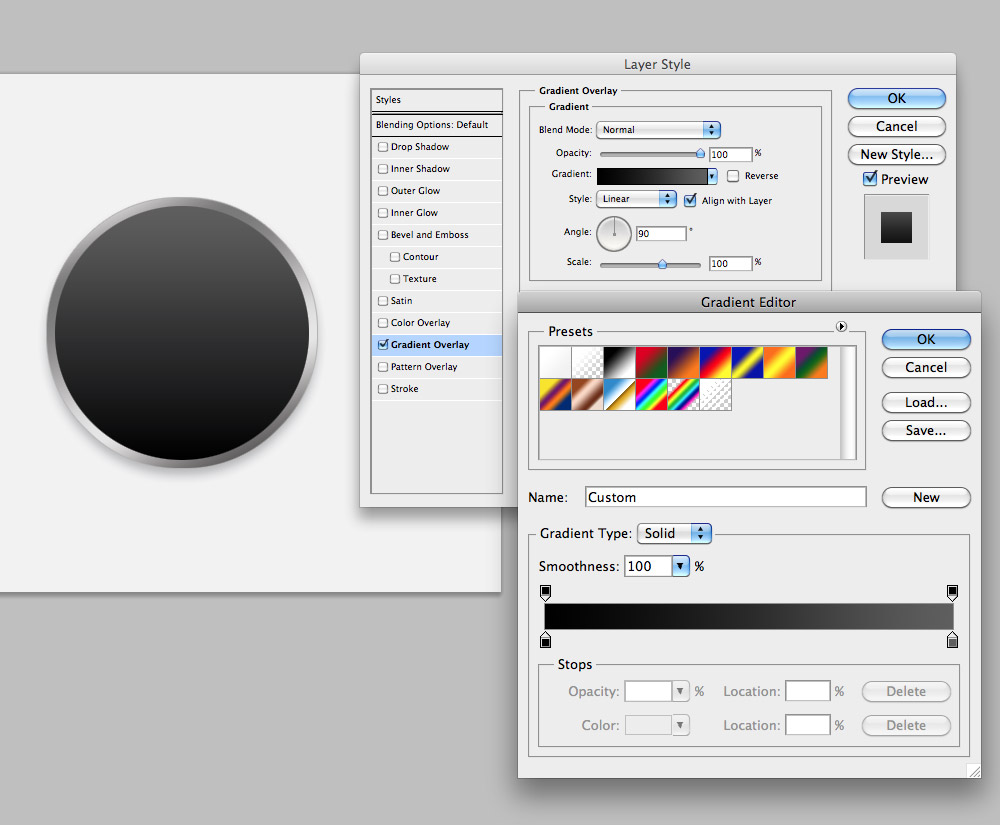
CMD+Click the layer’s thumbnail to load the circular selection. Right click and choose Transform Selection, then scale down the selection while holding Shift and Alt. Fill this new selection with black on a new layer.

Open up the layer styles window for this layer and add a black to dark grey vertical Gradient Overlay to form the base of the fascia.

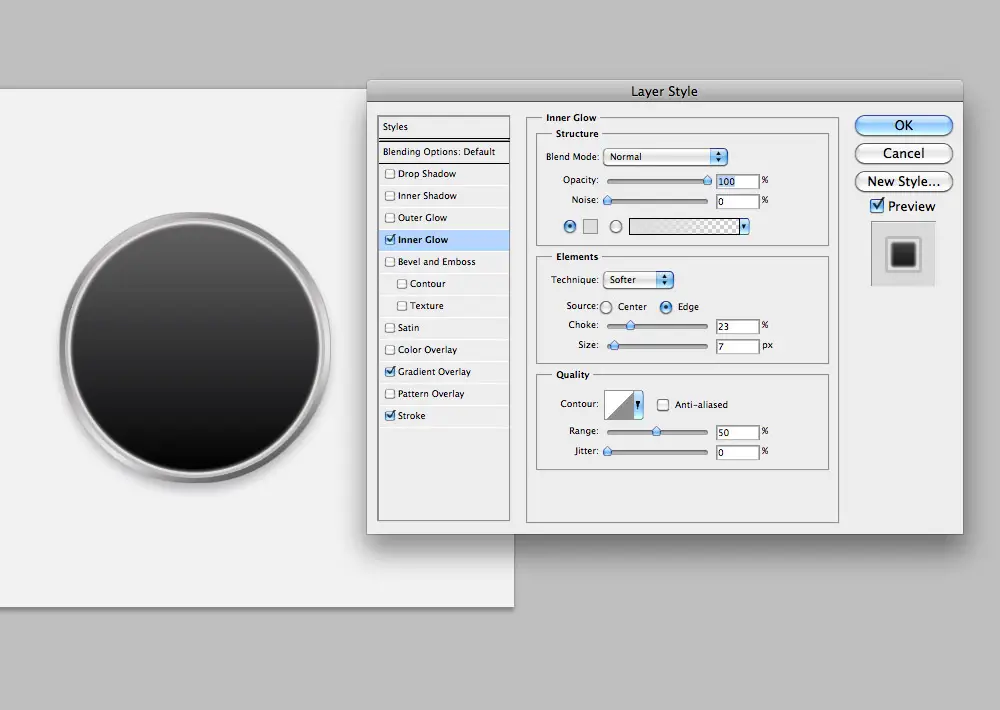
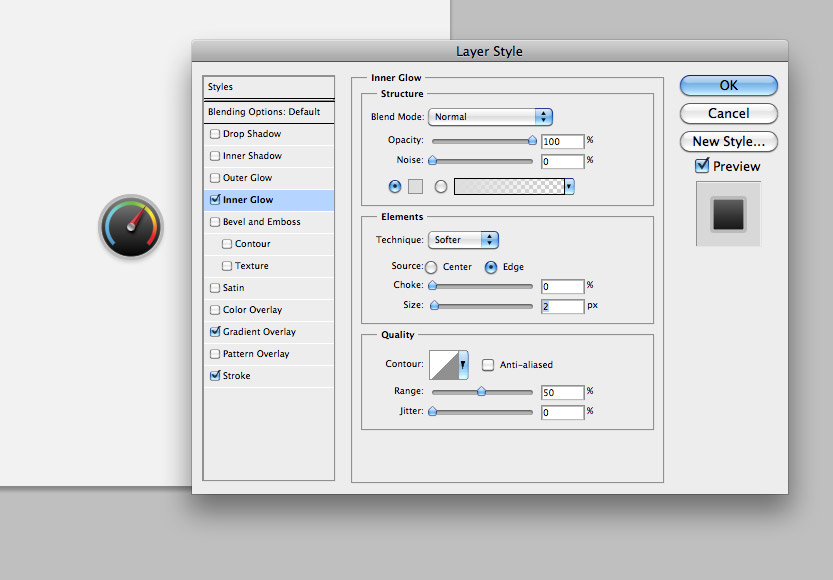
On the same layer, add an Inner Glow and Stroke effect using light grey tones to give the impression of a chrome surround.

Load the selection by CMD+Clicking the layer thumbnail, then fill a new layer with a repeating pattern. I’m using one of the patterns from the recent pixel patternsfreebie here on Line25. Change the blending mode to Multiply to render the white areas transparent then reduce the opacity to around 25%.

Load another circular selection, scale it down slightly and fill with white. Load the selection again, scale down further and delete this selection to form a white ring. Create a square selection, right click and choose Transform Selection, rotate it by 45 degrees (hold Shift) then move it downwards so the top corner is aligned with the centre of the gauge. Delete this selection from the white ring.

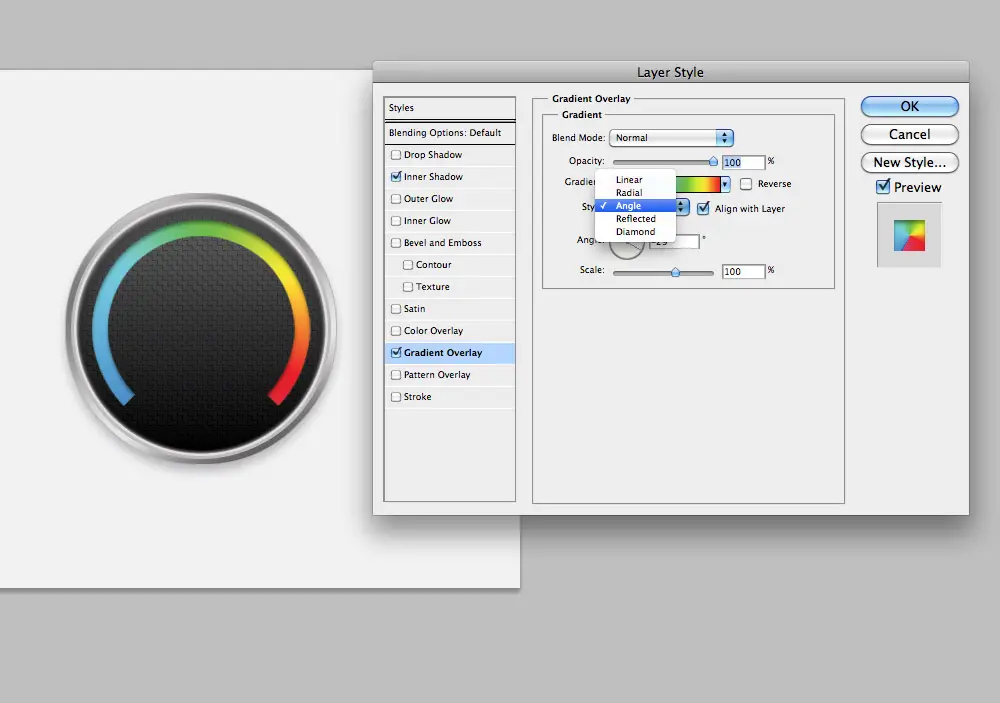
Load the layer styles for this shape and add a Gradient Overlay using the default rainbow color spectrum. Change the style to Angle then alter the orientation until the gradient begins with blue and ends with red. Add a subtle Inner Shadow to the top edge.

Draw a small circle in the centre of the gauge and add a metal style Gradient Overlay using grey tones. Also add a subtle Drop Shadow to add depth and a touch of realism.

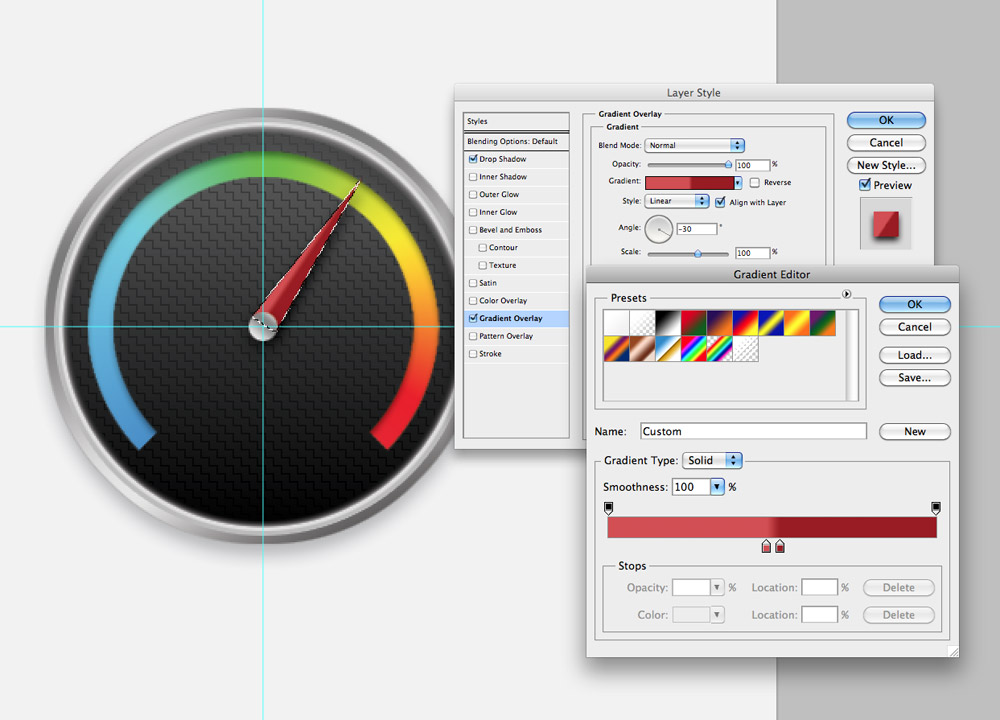
Use the Polygonal Lasso tool to draw a needle shape on a layer underneath the centre pin and add a Gradient Overlay using dark and light red tones. Alter the gradient angle so it flows exactly down the centre of the needle. Give the needle a subtle Drop Shadow to give the impression that is lifted from the gauge face slightly.

The largest of the icons is now complete. All the subtle gradients help to replicate light and shade to create a more realistic icon design. Now let’s rebuild the icon into the smaller versions.

Select all layers and press CMD+T to Transform. Using the top toolbar to enter the specific dimensions of the smaller icons.

When the icon is scaled some of the effects are lost, or their size remains too large to work properly on the smaller icon. Go through the styles and remove effects that are no longer visible.

Other effects such as gradients and shadows will need adjusting to accommodate the smaller icon size. Go through and reduce the size of each of these effects.

The great thing about layer styles is the contents of the layer can be recreated entirely while keeping the same effects. The centre pin in particular becomes way too small on the tiny icons, so fill a larger circular selection on the same layer – The layer style will automatically add the same gradient and shadows.

The largest of the icons features all the textures and details, but as the icon is scaled down some of these details are lost. As the icon moves into the 48px-32px range the proportions are adjusted so the design is still recognisable, this includes a larger centre pin and needle as well as replacing the gradients of the chrome surround with a plain grey stroke.